Click your pageThen type
Edit your website right where it lives. Change the words, move sections around, pick colours and check the phone view, then publish when you are happy. You never see code and nothing goes live until you say so.
Free for 14 days. Card needed, nothing charged until the trial ends.
Fresh bread daily
Sourdough baked through the night. Saturday classes for anyone who wants to learn.
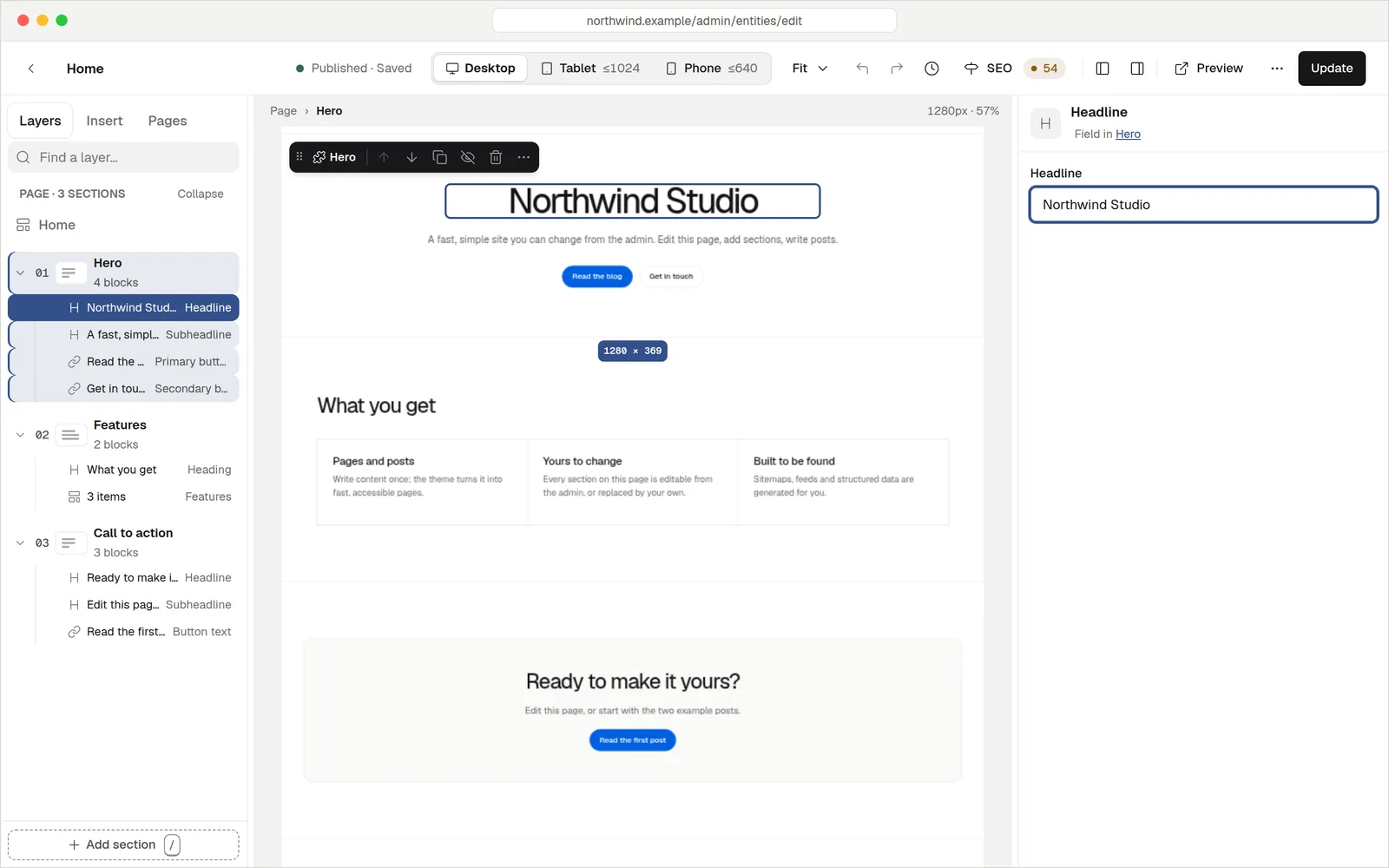
What you see is what you publish
Your page sits in the middle of the screen, exactly as visitors will see it. Point at anything to outline it, click to select it, double-click words to type. There is no separate preview to open and no guessing.
- Start from a starting point. A new page offers a hero, features, a call to action or an FAQ, or you can begin blank.
- Add with one press. A round + appears between sections. Search for what you want, press Enter, done.
- Drag to reorder. Move sections in the list on the left, or nudge them with the arrow keys.
- Save blocks you like. Turn a section into a reusable block, so changing it once updates every page that uses it.
Looks right on a phoneCheck before you publish
Flip between Desktop, Tablet and Phone while you edit. Give phones their own spacing, or hide a section on small screens. Each switch works on its own, so you change one size without touching the others.
Three screen sizes
Desktop, Tablet and Phone, with a band across the top so you know which one you are editing.
Show or hide
Choose where each element appears: desktop, tablet, phone, or any mix.
Zoom to fit
Fit, 50, 75 or 100 percent, so a long page is easy to see at a glance.
Edit on a phone
On a small screen the panes become a dock at the bottom. Tap an element to open its settings.
Make a messGo back
Every step is written down in plain words, such as "Add Heading" or "Move Button". Jump back to any of them. Drafts save themselves a few seconds after you stop typing, and every save is kept as a version you can restore.
- Undo and redo, with the usual keys or the button in the top bar.
- Versions. Compare two versions and restore an old one. Restoring saves it as a new version, so nothing is ever deleted.
- Nothing goes live by accident. Once a page is published, changes only appear when you press Update page.
- Two people, one page. If someone else saved first, you choose whose version to keep.
History
Click a step to go back to it.
Main menu
HeaderBuild your menu by dragging
Your site's navigation has its own simple editor. Add pages, posts, categories or any web address, drag items into order and tuck some under others for a drop-down. The preview follows as you go, and the whole menu saves at once.
- Header, footer or sidebar. Give a menu a location and your design shows it there.
- Pick from your own pages. Type a few letters and choose, no copying addresses.
- Undo works here too. Select several items at once and move them together.
The menu editor as it really looks
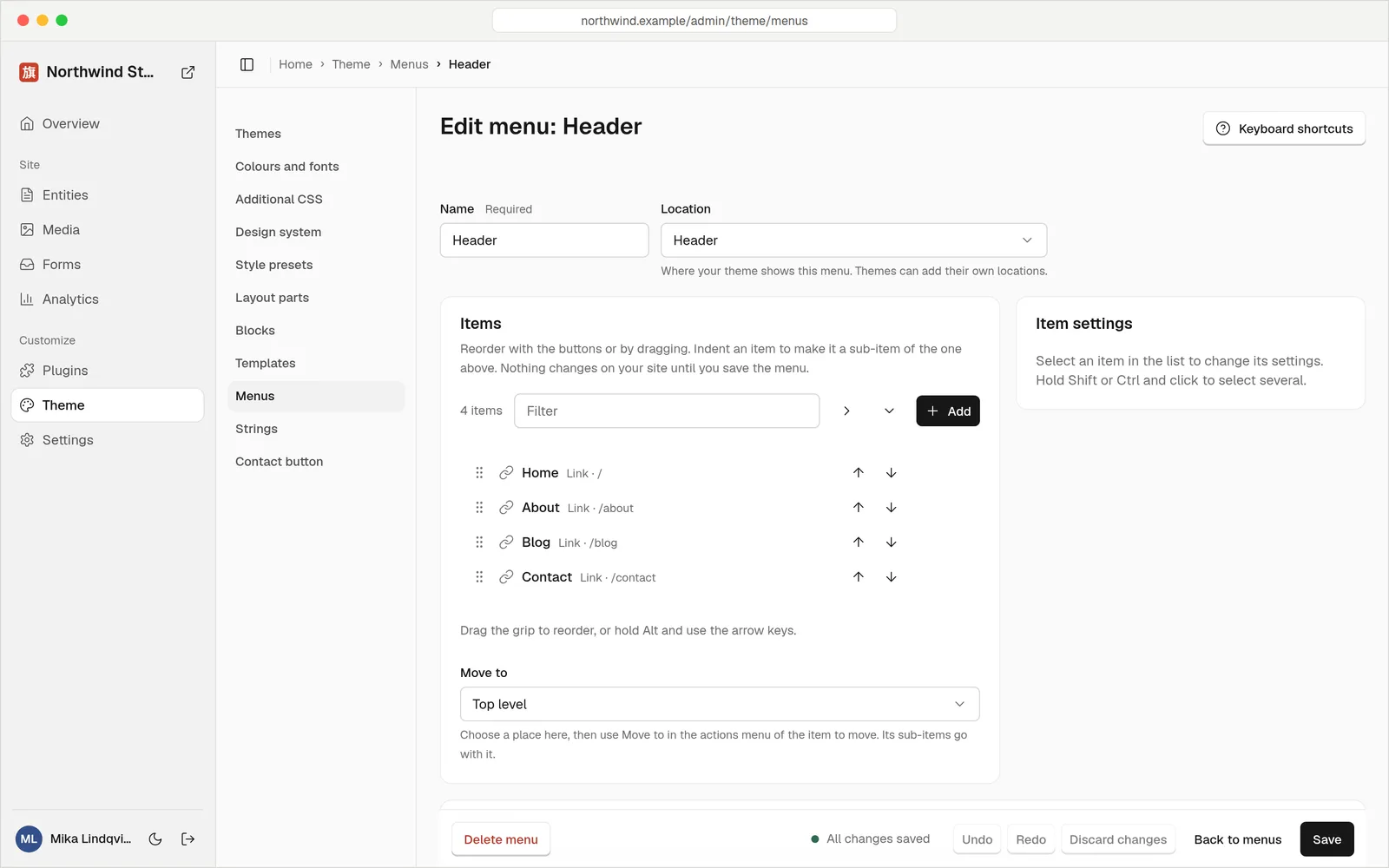
Fast if you want itGentle if you don't
Everything works with the mouse. If you like the keyboard, press ? inside the editor to see every shortcut.
On a Mac, use Cmd instead of Ctrl.
Small touches that save hours
Site-wide colours
Change Brand, Background and Text colours once, and every page picks them up. Corners come in three sizes.
Link panel
Start typing and it suggests your own pages. Open in a new tab, nofollow and sponsored are one tick each.
Ready-made sections
Hero banners, feature lists, calls to action and FAQs, all in the insert list with a search box.
SEO drawer
Write the search title and description, pick a social image and see the checks as you type.
Alt text reminders
An image asks for a short description, or to be marked decorative, and warns you until you choose.
Loops from your content
Show your latest posts or a filtered list on any page. The list updates by itself as you publish.
QuestionsAnything else, just ask
Talk to usNo. You click, type, drag and pick from lists. The code is generated for you and kept out of sight.
Yes. On a narrow screen the editor shows a dock at the bottom with Navigator, Insert and Inspector. It is comfortable for a quick fix, though a laptop is nicer for a big redesign.
Press Undo, or open History and go back to any step. Earlier versions of the page are kept, so you can restore one at any time.
Never. Drafts are only visible when you are signed in. On a published page, changes stay private until you press Update page.
Yes. Owners can set Brand, Background and Text colours and the corner sizes from Site styles inside the editor. Fonts are set under Themes.
Yes. Upload them to your media library or drop them straight onto the page.
Your pageYour words
Try the editor free for 14 days. Card needed, nothing charged until the trial ends.